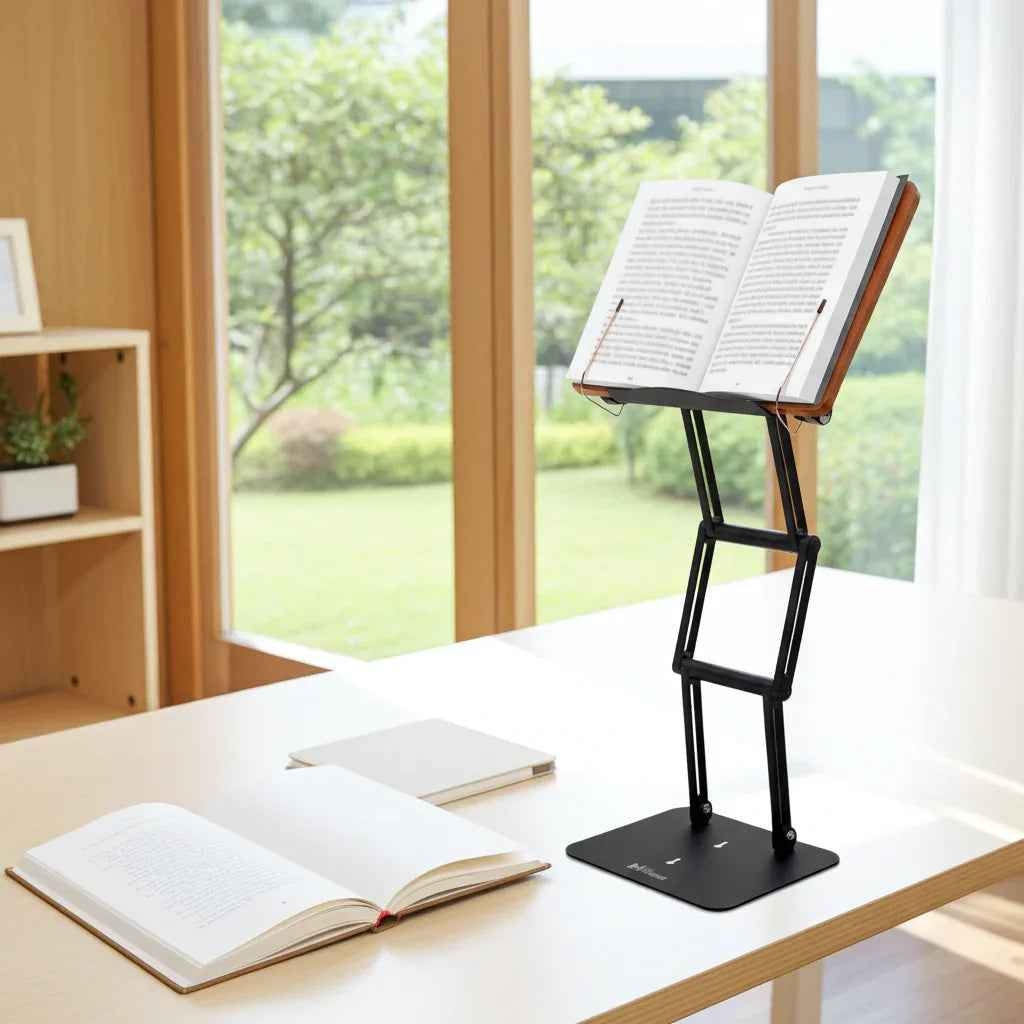
A laptop balanced on a light reading stand can turn an ordinary work session into a small engineering experiment - usually right when you are trying to finish something important. So, can book stands hold laptops? Some can, but many were built for pages, not electronics. The difference matters for your device, your desk, and the position of your neck after a long day.
A capable stand can raise a laptop screen closer to eye level, creating a more upright working posture and freeing up valuable desk space. The wrong stand may wobble, slip at the hinge, block ventilation, or place the keyboard at an awkward angle. Before using a book stand as a laptop riser, assess how it carries the load rather than assuming a wide surface means it is ready for one.
Can Book Stands Hold Laptops Safely?
The short answer is yes, provided the stand has sufficient load capacity, a secure front lip, reliable angle adjustment, and a stable base. A laptop is often lighter than a thick medical textbook or a large volume of Talmud, but its weight is distributed differently. It has a rigid, smooth underside, a bottom-heavy hinge area, and far less tolerance for a sudden slide.
A basic bamboo cookbook holder or wire reading rack may hold a small laptop temporarily. That does not make it a sound daily workstation. These lighter stands are commonly designed to support an open book at a modest angle. They may flex under the concentrated weight of a laptop, shift when you type, or gradually collapse at the adjustment point.
For occasional recipe viewing or a short video call, a simple stand may be adequate if the device fits securely. For writing, research, remote work, or serious study, the standard should be higher. You need a platform that remains still while you work, not one that asks you to keep one hand ready for a rescue.
The Four Features That Determine Whether a Stand Works
1. Weight capacity is only the starting point
Check the manufacturer’s stated weight rating, then consider the size and shape of your laptop. A compact 13-inch notebook may weigh only a few pounds. A 16-inch workstation laptop, especially one with a metal chassis and charging cable attached, can place considerably more stress on the stand’s joints and shelf.
A stand should support the laptop without bowing, creaking, or showing movement at its hinges. It should also have a margin beyond the device’s stated weight. Working at the edge of a stand’s capacity is not a performance feature. It is a warning sign.
2. The front lip must be deep and secure
The lower lip is the component that keeps your laptop from becoming a very expensive paperweight. It needs enough depth to catch the front edge of the device securely without pressing keys or obstructing ports.
A shallow lip may work for a paperback because pages create friction. A laptop’s smooth base can slide forward, particularly when the stand is steeply angled. Look for a substantial ledge and a non-slip contact surface. Confirm that it holds the laptop squarely rather than forcing it to perch on a narrow edge.
3. The angle must lock under real use
Book stands often offer several preset angles or a hinged rear support. That is useful until the angle changes when you rest your hands on the keyboard. If you intend to type directly on the elevated laptop, the adjustment mechanism must resist downward force and vibration.
A laptop stand should stay at its chosen angle when you open the screen, connect a charger, tap the trackpad, or make ordinary typing movements. This is where heavier construction and dependable joints earn their keep. Aluminum structural components and stainless steel joints are not decorative details when your work depends on stability.
4. The base needs a wide, stable footprint
A tall setup creates more leverage. If the base is narrow or lightweight, the laptop can feel steady until the desk is bumped, a cable pulls slightly, or you adjust the screen. A good stand stays planted under normal use and does not make your workspace feel precarious.
Pay attention to the desk surface as well. Glass, polished wood, and slick laminate can reduce grip. Non-slip feet help, but they do not compensate for a poorly balanced design.
A Raised Screen Is Better, but Typing Position Still Matters
The central ergonomic advantage of a laptop stand is screen height. Looking downward for hours can encourage forward-head posture and add strain to the muscles supporting the cervical spine. Raising the display helps bring your gaze forward rather than down, which can make sustained reading, meetings, and document work more comfortable.
But a laptop combines a screen and keyboard in one body. When you raise the screen to a more favorable height, the built-in keyboard also rises. That is excellent for viewing but often too high for prolonged typing. Your shoulders may lift, your wrists may bend back, and the ergonomic win becomes incomplete.
For longer desk sessions, use an external keyboard and mouse with the laptop on the stand. This lets you position the screen near eye level while keeping your hands lower and your elbows closer to a relaxed working angle. It is a straightforward change, but it separates screen placement from hand placement - exactly what a laptop’s integrated design does not allow on its own.
If you only need to type a short email or annotate a document, using the built-in keyboard at a modest elevation can be reasonable. The test is not whether you can type there. It is whether you can do it for an hour without tightening your shoulders or craning your wrists.
Height Changes the Quality of the Setup
Most book stands elevate an item only a few inches. That may improve the reading angle, but it rarely places a laptop screen high enough for a tall adult or for standing work. A true laptop-supporting book stand needs meaningful vertical adjustment, not just tilt.
This is where a serious adjustable utility stand differs from a commodity book holder. The Stander 1.1 raises its supporting lip 17.8 inches above the tabletop, allowing books, tablets, and laptops to be positioned for seated work or moderate standing workflows. The actual screen sits even higher, depending on the laptop’s dimensions and hinge design.
Height alone is not the goal. The goal is to set the top portion of the screen near your natural line of sight while keeping the display far enough away for comfortable viewing. You should not have to hunch over a low screen, nor should you have to tip your chin upward to see the top of it.
Watch for Heat, Cables, and Laptop Design
Before committing to any stand, inspect the bottom of your laptop. Many laptops draw air through underside vents. A solid support surface can reduce airflow if it covers those openings, particularly during video rendering, gaming, large spreadsheet work, or extended external-monitor use.
A stand with an open design or a support position that leaves vents clear is preferable. If your device runs warm, periodically check whether its fan activity increases after it is placed on the stand. Heat is not a reason to abandon elevation altogether, but it is a reason to use the right support geometry.
Cables deserve similar attention. Power cords, USB hubs, headphones, and external displays can create a pulling force that makes a stable stand less stable. Route cables with enough slack that turning the screen or adjusting its height does not tug the laptop forward.
When a Book Stand Is the Wrong Tool
Not every laptop should sit on a book stand. Avoid using one if the platform is visibly narrow, the retaining lip barely catches the device, the adjustment hardware feels loose, or the base shifts under light pressure. Also skip it if the stand obstructs essential cooling vents or if you must type hard on the raised keyboard for hours.
A stand may also be unsuitable if your laptop is unusually heavy, has a curved bottom, or carries external accessories that make it uneven. In those cases, a dedicated heavy-duty adjustable platform is a better decision than repeatedly testing the limits of a light reading accessory.
The same judgment applies to important books. A stand that is trustworthy with a laptop should also be able to hold demanding texts, but the reverse is not automatic. A stand designed for a thin paperback may not have the construction, height, or locking mechanism needed for professional-grade screen work.
Set Up the Laptop Stand for Focus, Not Just Height
Once you have a stable stand, place it directly in front of you rather than off to one side. Center the screen, set a comfortable viewing distance, and adjust the display to reduce glare. If you use an external keyboard and mouse, bring them close enough that you do not reach forward with rounded shoulders.
Then work for twenty minutes and notice what your body says. Are you leaning in? Are your shoulders rising? Is the screen stable when you interact with it? A good ergonomic setup becomes unremarkable quickly because it stops demanding your attention. That is the point: your stand should support the work, the learning, and the long page of notes in front of you without becoming another problem to solve.