If your neck tightens halfway through a chapter or your shoulders creep forward during a long PDF review, your setup is doing more work against you than for you. This guide to ergonomic laptop reading setups is built for serious readers, students, researchers, and desk-based professionals who spend real hours with text on a screen and need a workstation that supports sustained focus without punishing posture.
Reading on a laptop creates a specific ergonomic problem. The screen and keyboard are attached, which means the ideal height for your eyes is rarely the ideal height for your hands. If the laptop stays low enough for comfortable typing, you end up dropping your head. If you raise it for better viewing, your wrists and shoulders pay the price. That tension adds up fast, especially during dense reading, annotation, and study sessions where you stay fixed in one position longer than you realize.
Why laptop reading creates more strain than people expect
Laptop reading looks passive, but it often produces the same postural stress as active desk work. The issue is not just screen time. It is repeated cervical flexion, rounded shoulders, and a tendency to lean closer as concentration increases. The more demanding the material, the more people inch toward the screen.
That matters because the head is heavy, and small changes in neck angle increase the load on the cervical spine. Over time, a poor reading position can contribute to neck stiffness, upper back fatigue, jaw tension, and even headaches. For students and professionals who move between textbooks, case law, research papers, spreadsheets, and notes, the problem gets worse when materials are spread across different heights on the desk.
An ergonomic setup does not eliminate all discomfort. It reduces avoidable strain and gives your body a more sustainable position. That distinction matters. Good ergonomics is not perfection. It is support for long sessions of serious work.
The core principle of an ergonomic laptop reading setup
The simplest rule is this: bring the reading material up to you instead of dropping your body down to it.
For laptop reading, that usually means elevating the screen closer to eye level while making sure your arms are not forced into an awkward position. In some cases, that requires separating reading from typing. If you are mostly reading, reviewing, or referencing, a higher screen position is often the right trade. If you are typing continuously, the setup needs another layer of support, usually with an external keyboard and mouse.
The goal is not to create a showroom desk. The goal is to keep your head more neutral, your shoulders more relaxed, and your visual field more comfortable so attention stays on the material instead of your discomfort.
Guide to ergonomic laptop reading setups by use case
The best setup depends on what kind of work you are actually doing. A student reading a digital textbook for two hours needs something different from a lawyer drafting notes between cases or a scholar moving between sacred texts and a laptop.
Setup for reading-heavy laptop sessions
If your session is mostly reading, place the laptop higher than most people think. The top third of the screen should sit around eye level or slightly below. That reduces the need to bend your neck forward every few minutes.
Your elbows should stay relaxed by your sides, and your hands can rest in your lap, on the desk, or lightly on the keyboard if you are scrolling only occasionally. This is where a stable elevated stand matters. A flimsy riser that wobbles under pressure interrupts concentration and subtly encourages guarded posture. Stability is not a luxury when you are working with expensive devices or spending hours in one place.
Setup for mixed reading and note-taking
This is the most common real-world scenario. You are reading from the laptop, then typing notes, then reading again. In that case, a medium-height setup often works best unless you use external peripherals.
Raise the laptop enough to improve screen height, but not so high that your wrists stay lifted for long periods. If you are taking short notes, this compromise can be reasonable. If you are writing heavily, add an external keyboard and mouse so the screen can stay high while your arms remain in a neutral position.
A second factor here is document placement. If you are cross-referencing printed notes or a textbook, keep those materials elevated too. Constantly looking down to the desk and back up to the screen creates its own repetitive strain pattern.
Setup for deep study with multiple materials
This is where many desks fail. A laptop on the desk, a textbook flat beside it, handwritten notes below, and a tablet somewhere off to the side forces the body into a cycle of twisting, dropping, and craning.
A better arrangement keeps the primary reading surface centered and elevated, with secondary materials close to the same visual plane. For serious study, especially with heavier books or large texts, the support platform needs enough height, enough strength, and enough adjustability to handle more than a thin tablet. This is one reason premium stands outperform commodity holders. They do not collapse under serious use, and they allow the workspace to adapt to the work instead of the other way around.
What to adjust first
Start with screen height. If the laptop screen is well below eye level, fix that before changing anything else. Then look at viewing distance. Most readers do best with the screen roughly an arm's length away, adjusted slightly for screen size and vision needs.
After that, check chair and desk relationship. Your feet should feel planted, your knees comfortable, and your shoulders unforced. If you have to raise your shoulders to reach the keyboard, or if you slump to see the screen clearly, the setup is still off.
Lighting also matters more than people think. Poor lighting makes you lean in. Screen glare makes you tilt your head or squint. A cleaner visual environment supports better posture because it removes the need to compensate.
The trade-offs most articles ignore
Not every elevated setup is automatically ergonomic. A high laptop with no external keyboard may be excellent for reading and poor for writing. A low laptop may feel fine for short emails and become a problem during a two-hour study block. What works depends on duration, task type, and how often you switch between inputs.
There is also a difference between portability and performance. Fold-flat stands are convenient, but many are too light for heavy devices or demanding daily use. If your work is serious, stability usually matters more than minimal footprint. The desk tool you use every day should not behave like a travel accessory.
Standing is another area where nuance matters. Moderate standing can improve comfort for some people, but only if the platform raises high enough and remains stable. Standing with a low screen simply replaces seated neck flexion with standing neck flexion. The position changes, but the strain stays.
What a high-quality reading stand should actually do
A proper stand for ergonomic laptop reading setups should elevate the screen enough to improve neck angle, remain stable under repeated use, and support more than one format. That means it should handle a laptop, but also textbooks, printed documents, and tablets without constant adjustment or the feeling that the platform is near its limit.
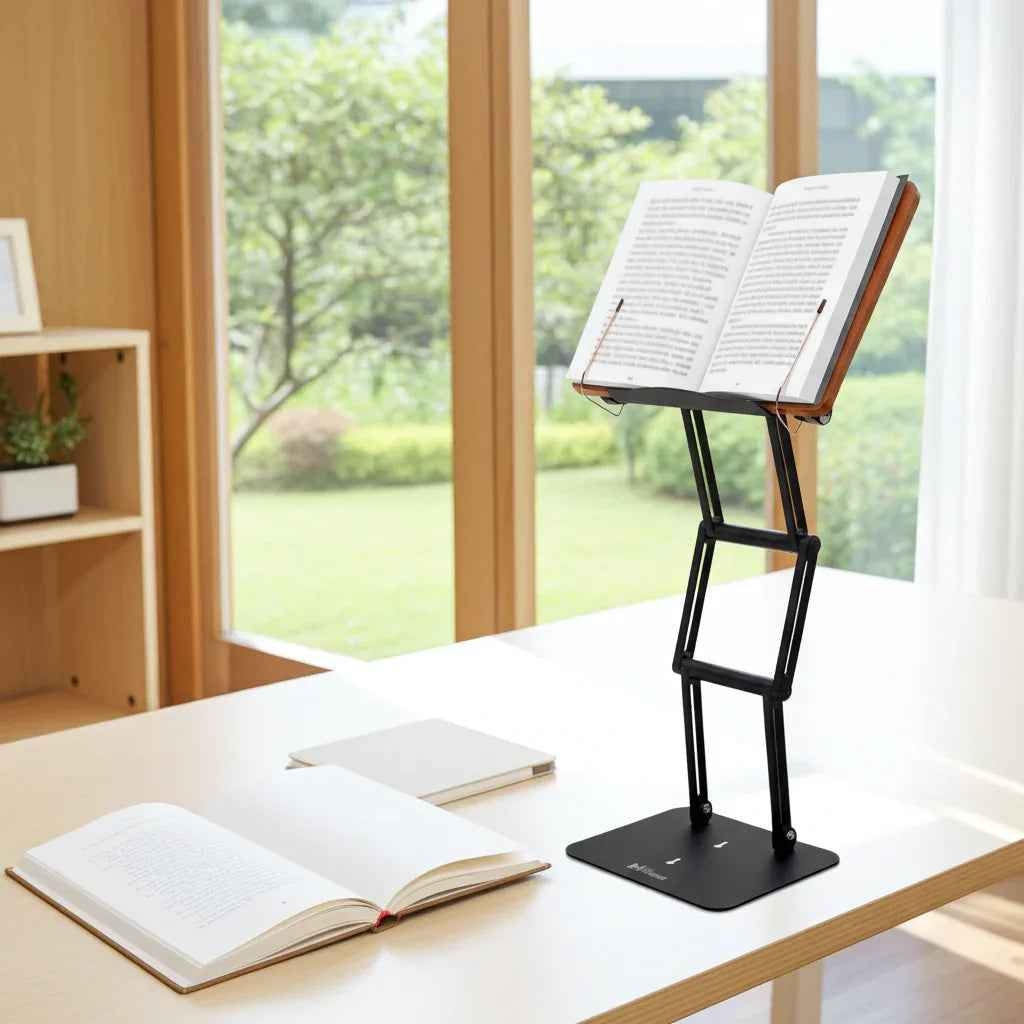
For users who spend long hours reading and studying, build quality is not cosmetic. Durable joints, a high maximum elevation, and a broad, secure platform directly affect posture because they determine whether the material can stay where it should. A premium adjustable stand such as The Stander 1.1 fits this kind of workflow well because it functions as a laptop riser, reading stand, and serious study platform rather than a single-purpose accessory.
That versatility matters in real life. Serious readers rarely use one format all day.
Small habits that protect a good setup
Even a well-built workstation cannot compensate for staying frozen too long. Shift position occasionally. Let your shoulders reset. Change between reading and typing posture when the task changes. If you notice yourself inching toward the screen, treat that as feedback - either the screen is too far, the text is too small, or fatigue is setting in.
It also helps to set up for your longest session, not your shortest one. Almost any desk arrangement feels acceptable for ten minutes. The real test is whether it still feels controlled and sustainable after ninety.
A well-designed reading setup should make concentration easier, not harder. When your materials are lifted, centered, and stable, posture improves almost as a side effect of better workflow. That is the right standard to use: less strain, more focus, and a workspace built for the kind of thinking you actually do.