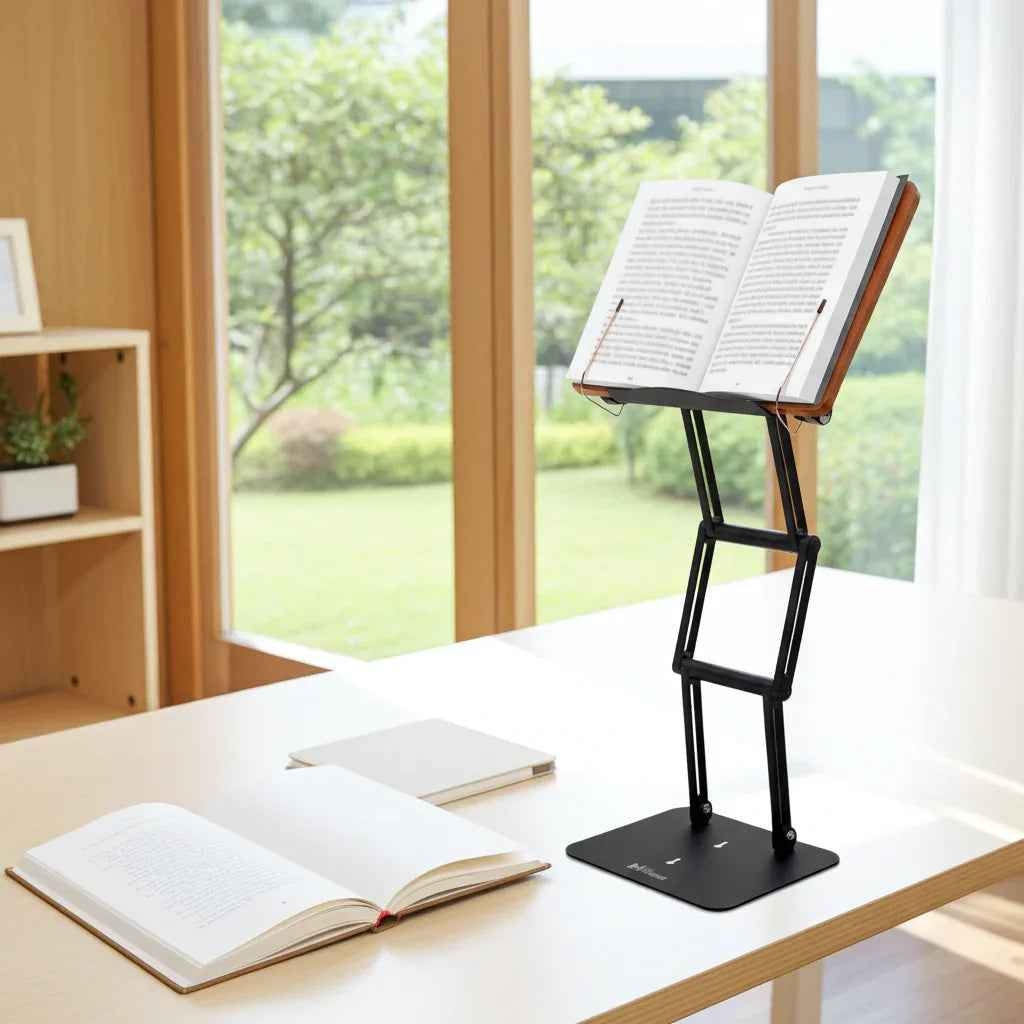
A laptop can be fast, powerful, and expensive - and still put your head in a terrible position. The problem is usually not the screen itself. It is screen height alignment. When a display sits too low, your eyes follow it downward, your chin follows your eyes, and your neck ends up doing hours of unpaid overtime.
For students moving through dense textbooks, professionals living in documents and video calls, and scholars spending serious time with sacred or academic texts, screen placement is not a cosmetic desk-detail. It shapes how long you can focus before discomfort interrupts the work. A well-positioned screen helps you keep your head closer to neutral, your shoulders less rounded, and your attention on the page rather than the ache between your shoulders.

The Stander by Dr. Shtaygen
Raise your laptop, tablet or book to eye level
Height- and angle-adjustable. 5052 aluminum alloy frame, 1.5 kg (3.3 lb), tested with heavy volumes up to 5 kg (11 lb). $95 + shipping, free 30-day returns.
See The StanderWhat Screen Height Alignment Actually Means
Screen height alignment means setting your monitor, laptop, or tablet at a height and angle that lets you view it without repeatedly bending or craning your neck. It is not a single fixed measurement because people, chairs, desks, screen sizes, and tasks vary. The goal is simple: your primary viewing area should meet your natural line of sight with only a modest downward gaze.
For a desktop monitor, the top of the visible screen will often sit around eye level or slightly below it. Your eyes should generally land near the upper third of the display when you are sitting upright. That positioning allows the rest of the screen to fall within a comfortable viewing range without forcing your neck into extension or flexion.
A laptop requires more thought. Its screen and keyboard are attached, which means a laptop placed directly on a desk asks you to choose between looking down at the display or lifting your arms to type. There is no magic angle that solves both at once. For longer sessions, raise the laptop screen and use an external keyboard and mouse. This separates viewing posture from typing posture, which is exactly what your body needs.
Why a Low Screen Changes More Than Your Neck
Looking down briefly is normal. Looking down for three hours while researching, writing a brief, reviewing a spreadsheet, or learning a difficult passage is a different proposition. The farther your head drifts forward, the more work the muscles of the neck and upper back must do to support it.
That posture often invites a chain reaction. The shoulders round forward. The upper back slumps. The chest becomes compressed. Breathing can feel shallower, and concentration begins to fade. Many people respond by leaning closer to the screen, as if proximity will improve the work. Usually, it only makes the posture worse.
Screen height alignment also affects your eyes. A display that is too high may encourage an upward gaze and more open eyelids, which can feel drying over time. A display that is too low can create a constant downward head angle. The useful middle ground is a screen that lets your eyes move naturally while your head remains relatively still.
This does not mean you must sit motionless like a museum statue. Good ergonomics supports movement. The best setup is one that makes neutral posture easy to return to throughout the day.
Set Your Screen Height in the Right Order
Start with the chair, not the monitor. Adjust your chair so your feet are supported by the floor or a stable footrest, and your hips are positioned comfortably. Your knees should have room rather than being pressed tightly beneath the desktop. Then sit back enough to use the chair's support instead of hovering forward at the edge.
Next, place your keyboard where your elbows can stay near your sides and your shoulders can relax. For most people, the forearms will be roughly level with the floor or angled slightly downward. Once the keyboard is in a workable position, raise or lower the screen to match your eye line. This order matters. Lowering your chair to accommodate a low screen may solve one problem while creating poor wrist, hip, or leg positioning.
Distance matters too. A screen placed too close encourages visual fatigue and hunching; one placed too far away makes you lean forward to read. A practical starting point is about an arm's length away, then adjust based on screen size, text size, and your vision needs. Increase font size before moving your head toward the display. Your neck should not have to compensate for tiny text.
If you use two monitors, decide which is primary. Center the main screen directly in front of you. If both screens receive equal use, position them close together in a shallow V shape so you are turning your head gently rather than repeatedly twisting your torso. The top edges should be similar in height whenever possible.
The Laptop Exception
Laptop users often hear that the top of the screen should be at eye level. That is generally sound advice, but it is incomplete when the built-in keyboard remains in use. Raising the laptop high enough for proper viewing can leave the keyboard too high for comfortable typing.
For short tasks, use the laptop in the least awkward position available and take frequent posture breaks. For real work - a class lecture, research session, remote job, writing project, or study block - elevate the laptop and add an external keyboard and mouse. It is a small change with a disproportionately large payoff.
A stable adjustable stand is especially useful because it lets you set the screen where your body needs it rather than where the desk happens to leave it. The Stander by Dr. Shtaygen raises supported materials up to 17.8 inches above the tabletop at its aluminum lip, allowing many users to bring a laptop, tablet, or open book much closer to eye level for seated and moderate standing work.
Height Is Only Half the Setup
A perfectly elevated screen can still be wrong if the angle is poor. Tilt the top of the screen slightly away from you when needed to reduce reflections and keep the display perpendicular enough to your line of sight. Avoid aggressive tilting that causes colors to distort or forces you to reposition your head.
Glare deserves attention because it quietly ruins otherwise good alignment. If a window or overhead light reflects across the display, people tend to crane, squint, or lean to one side. Reposition the monitor, manage the light source, or adjust screen brightness before accepting an awkward posture as inevitable.
The same principle applies to reading materials. A heavy textbook laid flat turns every paragraph into a downward bend. A book held high and securely on an adjustable stand can keep the page in your visual field while preserving desk space for notes. This is the old intelligence of the shtender applied to modern study: raise the text, steady the work, and let the body stay available for thinking.
Seated and Standing Screen Height Alignment
Standing desks create flexibility, but they do not automatically create good posture. A screen height that works while seated may be far too low when standing. Conversely, a monitor arranged for standing can force you to look upward when you sit down.
If you alternate between positions, use equipment that adjusts quickly enough to make the transition realistic. The monitor should come up as you stand, while the keyboard remains low enough that your shoulders do not rise toward your ears. In either position, keep the screen centered, keep frequently used materials within easy reach, and resist the temptation to work with one foot perched on a desk drawer like a captain surveying the bridge.
Moderate standing is often most productive when it is part of a rotation rather than an endurance contest. Sit for focused writing, stand for reading or reviewing, walk briefly, then return. Your best posture is rarely one posture held forever.
Signs Your Screen Needs Adjustment
Your body usually gives useful feedback before it gives a formal complaint. Frequent chin jutting, neck stiffness at the end of a session, shoulder tightness, headaches associated with desk work, and the habit of leaning toward the display are all reasons to inspect your setup.
Also notice what happens during demanding tasks. If you begin upright but collapse toward the screen when reading fine print, editing a complicated document, or studying a difficult text, the issue may be text size, display distance, lighting, or screen height. Adjust the workstation for the task you actually perform, not the easy task you perform for five minutes.
There are exceptions. People who wear progressive lenses, bifocals, or specialized prescription glasses may need a lower screen position to avoid tipping the head backward. In that case, work with your eye care professional's guidance and find the lowest screen position that still avoids sustained neck flexion. Ergonomics is practical, not doctrinaire.
A Better Position Makes Serious Work Easier
The purpose of screen height alignment is not to build a desk that looks impressive in a photograph. It is to remove a recurring physical distraction from work that already demands enough of you. Set the screen where your eyes can find it, keep your keyboard where your hands can use it, and give your neck a better job than holding your head at an angle all afternoon.
The Stander by Dr. Shtaygen
Raise your laptop, tablet or book to eye level
Height- and angle-adjustable. 5052 aluminum alloy frame, 1.5 kg (3.3 lb), tested with heavy volumes up to 5 kg (11 lb). $95 + shipping, free 30-day returns.
See The Stander